
Key takeaways
Give your training week a clear structure
Start with actual availability, review a template, then adjust the calendar. Guest use is free; account-saving access has separate terms.
A training week is easier to review when your lifting, cardio and available time are visible together. NeuForm Split Planner helps you organize that calendar before you commit to it.
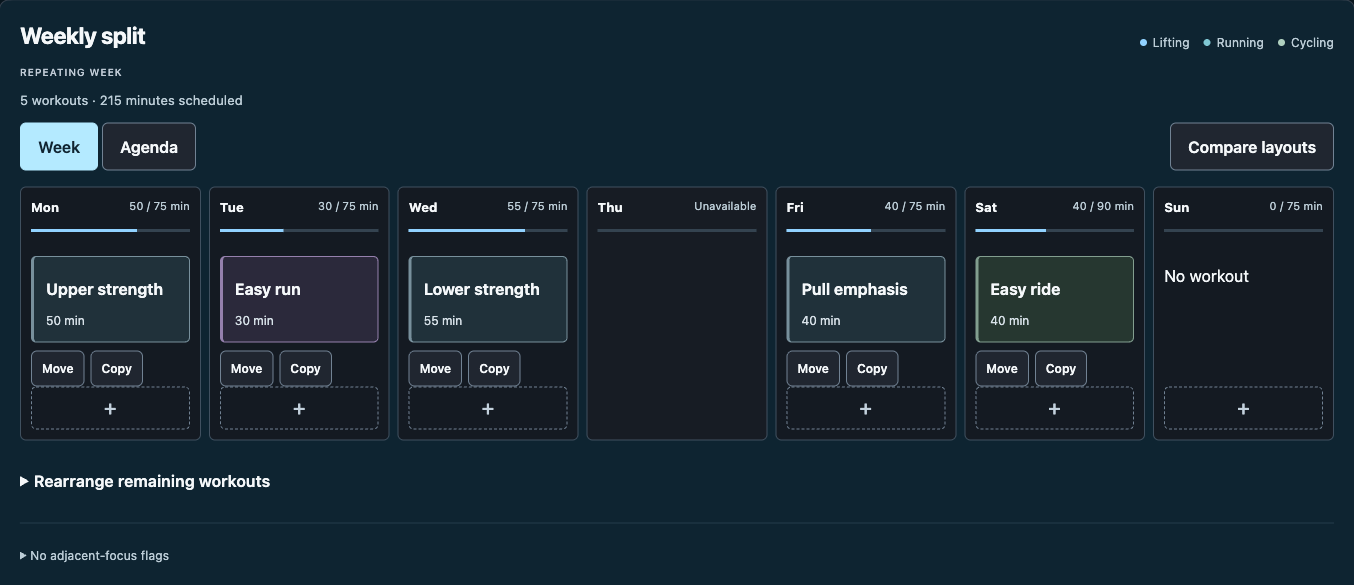
This guide follows the current controls in the tool. The screenshot shows sample entries, not a customer plan or a recommended routine.
Open Split Planner and choose Edit availability. Check which days are available and the time you can allow on each one.
Available time is a ceiling, not a target. A free hour does not mean you need to fill it. Begin with a calendar you can repeat, including the days that need to stay clear.
Build my week offers a guided starting point. Choose a split opens the split library, where you can filter templates and review one before applying it. Create my own provides another way to arrange a structure.
Read the template notes and review times and conflicts. Reference durations are estimates. A template is a starting structure, not a complete individualized exercise program.
The week view shows the sessions and the planned time on each day. In the sample screenshot, lifting, running and cycling share the calendar, and Thursday is unavailable.
Use Move to relocate a workout, Copy when a repeat is useful, and the plus control to add an entry. Review the resulting week rather than assuming an added session fits just because a day looks empty.
Switch between Week and Agenda to review the same plan in the layout you find easier to read. Compare layouts is available when you want to inspect alternatives.
The tool distinguishes your entered lifting sets from sample sets or missing totals. Check those labels before interpreting muscle or effort estimates. Cardio does not supply lifting-set totals.
Planned minutes and estimated effort cannot confirm how well you will recover or how an actual session will go. Review the tool's Planning & saving limits, then adjust using your real schedule and training feedback.
You can use the free guest mode. Account saving is separate: standalone Split Planner access is $19/year and renews until canceled; other eligible access may include it. Creating a free account alone does not establish paid saving access.
Check the current device/account status and Review saved copies before relying on a saved version. Under Save & tools, review the backup options and keep a downloaded JSON backup when appropriate. A browser draft should not be your only copy of important work.
For help with your existing access or saved copies, use NeuForm Support. The live tool and account state show the available options for your situation.
Split Planner organizes intended sessions. A completed-session record answers a different question: what work did you actually do?
Use the Universal Training Log for a printable record, or explore Strength Lab for digital lift tracking. For a complete exercise program, compare the real samples in Training Plans.